WordPress
WordPress is the world’s most popular content management system, powering over 40% of websites. typub supports publishing to WordPress via the REST API with JWT authentication.
Capabilities
| Feature | Support |
|---|---|
| Tags | Yes |
| Categories | Yes |
| Internal Links | Yes |
| Draft Support | Reversible (status field) |
| Math Rendering | SVG |
| Local Output | No |
Asset Strategies
| Strategy | Supported | Default | Notes |
|---|---|---|---|
embed | Yes | Images embedded as data URIs | |
upload | Yes | * | Upload to WordPress Media Library |
external | Yes | Use S3/R2 URLs | |
copy | No | WordPress requires upload or URL |
Prerequisites
- A self-hosted WordPress site (WordPress.com is not supported)
- Administrator access to install plugins
- JWT Authentication plugin installed and configured
Setting Up JWT Authentication
WordPress REST API requires authentication for content creation. The recommended method is JWT (JSON Web Token) authentication.
Step 1: Install JWT Authentication Plugin
Option A: Via WordPress Admin (GUI)
- Log in to your WordPress admin panel
- Go to Plugins → Add New
- Search for “JWT Authentication for WP REST API”
- Install and activate the plugin
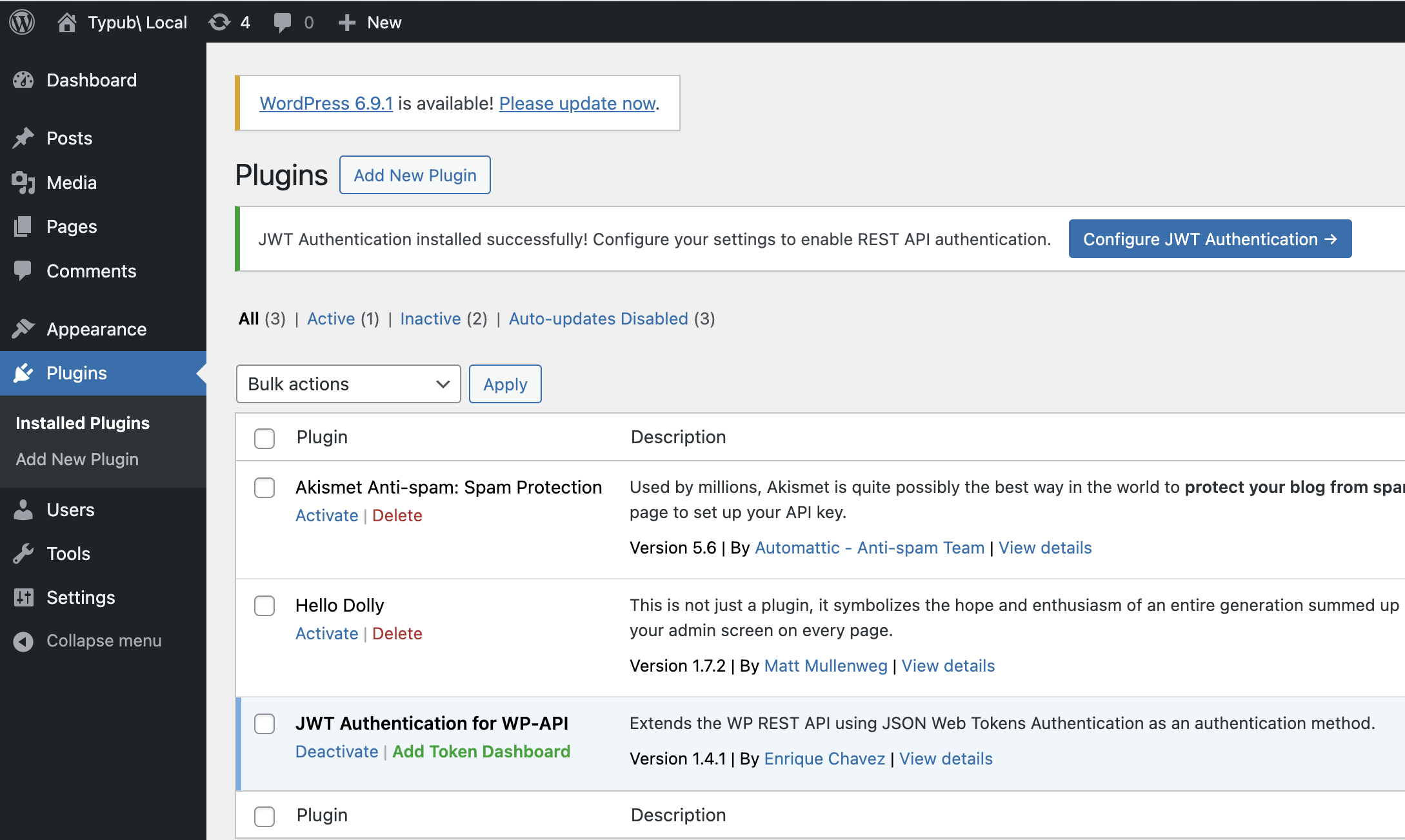
Option B: Via WP-CLI (Command Line)
If you have WP-CLI available (common in Docker setups):
wp plugin install jwt-authentication-for-wp-rest-api --activate
Step 2: Configure JWT Plugin (If Needed)
Note: Some hosting providers or Docker images may have this pre-configured. If the plugin works without manual configuration, you can skip this step.
The JWT plugin may require configuration in your wp-config.php file:
// Add these lines to wp-config.php (before "/* That's all, stop editing! */")

define('JWT_AUTH_SECRET_KEY', 'your-secret-key-here');
define('JWT_AUTH_CORS_ENABLE', true);
Security Note: Generate a strong secret key. You can use WordPress Salt Generator or any secure random string (64+ characters).
Docker Deployment
For Docker-based WordPress installations, you can set the secret key via environment variables:
# docker-compose.yml
services:
  wordpress:
    image: wordpress:latest
    environment:
      WORDPRESS_DB_HOST: db
      WORDPRESS_DB_USER: exampleuser
      WORDPRESS_DB_PASSWORD: examplepass
      WORDPRESS_DB_NAME: exampledb
      # Add JWT secret key
      WORDPRESS_CONFIG_EXTRA: |
        define('JWT_AUTH_SECRET_KEY', 'your-strong-secret-key-here');
        define('JWT_AUTH_CORS_ENABLE', true);
Or mount a custom wp-config.php with the JWT constants already defined.
Shared Hosting
On shared hosting, you may also need to enable HTTP Authorization headers in .htaccess:
RewriteEngine on
RewriteCond %{HTTP:Authorization} ^(.*)
RewriteRule ^(.*) - [E=HTTP_AUTHORIZATION:%1]
Step 3: Generate JWT Token
WordPress does not provide a UI for generating JWT tokens. You need to make an API request:
curl -X POST "https://your-site.com/wp-json/jwt-auth/v1/token" \
  -H "Content-Type: application/json" \
  -d '{"username": "your-username", "password": "your-password"}'
The response will contain your JWT token:
{
  "token": "eyJ0eXAiOiJKV1QiLCJhbGciOiJIUzI1NiJ9...",
  "user_email": "you@example.com",
  "user_nicename": "your-username",
  "user_display_name": "Your Name"
}
Important: Copy the
tokenvalue. This is your API key for typub.
Step 4: Verify Token Works
Test your token:
curl -X GET "https://your-site.com/wp-json/wp/v2/users/me" \
  -H "Authorization: Bearer YOUR_TOKEN_HERE"
If successful, you’ll see your user profile data.
Configuration
[platforms.wordpress]
base_url = "https://your-site.com"  # Your WordPress site URL (required)
api_key = "your-jwt-token"           # JWT token (or use WORDPRESS_API_KEY env var)
asset_strategy = "upload"            # Default: upload to Media Library
published = true                      # true for published, false for draft
Environment Variables:
Set WORDPRESS_API_KEY with your JWT token:
export WORDPRESS_API_KEY="eyJ0eXAiOiJKV1QiLCJhbGciOiJIUzI1NiJ9..."
Or in your shell profile:
# ~/.bashrc or ~/.zshrc
export WORDPRESS_API_KEY="eyJ0eXAiOiJKV1QiLCJhbGciOiJIUzI1NiJ9..."
Security Warning:
- Never commit JWT tokens to version control — use environment variables instead.
- JWT tokens are long-lived. If compromised, regenerate by changing your WordPress password and creating a new token.
- Store the token securely; it provides full write access to your WordPress site.
Usage
# Preview content
typub dev posts/my-post -p wordpress

# Publish to WordPress
typub publish posts/my-post -p wordpress
Taxonomy Sync
WordPress supports both tags and categories, which typub will automatically sync:
- Tags in your post’s front matter are synced to WordPress tags
- Categories in your post’s front matter are synced to WordPress categories
- If a tag or category doesn’t exist, it will be created automatically
# In your post's meta.toml
tags = ["wordpress", "tutorial", "cms"]
categories = ["Web Development", "Tutorials"]
Asset Handling
Upload Strategy (Default)
With asset_strategy = "upload", images are uploaded to your WordPress Media Library:
- typub uploads each image via the WordPress REST API
- Images appear in your Media Library
- Posts reference the uploaded image URLs
External Strategy
With asset_strategy = "external", use S3/R2 storage:
[storage]
type = "s3"
endpoint = "https://your-r2-endpoint.r2.cloudflarestorage.com"
bucket = "your-bucket"
region = "auto"
public_url_prefix = "https://cdn.your-domain.com"

[platforms.wordpress]
asset_strategy = "external"
Embed Strategy
With asset_strategy = "embed", images are embedded as Base64 data URIs. This is not recommended for large images due to size limitations.
Troubleshooting
“Unauthorized” error
- Verify your JWT token is correct and not expired
- Ensure
WORDPRESS_API_KEYenvironment variable is set - Check that JWT plugin is properly configured
- Try regenerating your token
“JWT not valid” error
- The token may have expired or been invalidated
- Regenerate by creating a new token via the API
- Check that
JWT_AUTH_SECRET_KEYis consistently configured
“Rest cannot access” error
- Ensure the user has sufficient permissions (Editor or Administrator role)
- Check that REST API is enabled on your WordPress site
- Verify no security plugins are blocking REST API access
Images not uploading
- Check your PHP upload limits in
php.ini(upload_max_filesize,post_max_size) - Ensure the user has upload permissions
- Try using
asset_strategy = "external"with S3/R2 storage
Posts not updating
- typub finds existing posts by slug
- If you changed the slug, the old post won’t be found
- Use the WordPress post ID in your local status database to force updates
CORS errors
- Ensure
JWT_AUTH_CORS_ENABLEis set totrue - Check your server’s CORS headers configuration