Notion
Notion is an all-in-one workspace for notes, docs, and project management.
Capabilities
| Feature | Support |
|---|---|
| Tags | Yes (via multi-select property) |
| Categories | No |
| Internal Links | Yes |
| Draft Support | None |
| Math Rendering | LaTeX |
| Local Output | No |
Asset Strategies
| Strategy | Supported | Default |
|---|---|---|
embed | No | |
upload | Yes | * |
external | Yes | |
copy | No |
Prerequisites
- A Notion account (free or paid)
- A database to publish content to
Getting Your API Token
Notion uses Internal Integrations for API access.
Step 1: Create Integration
- Go to notion.so/my-integrations
- Click + New integration
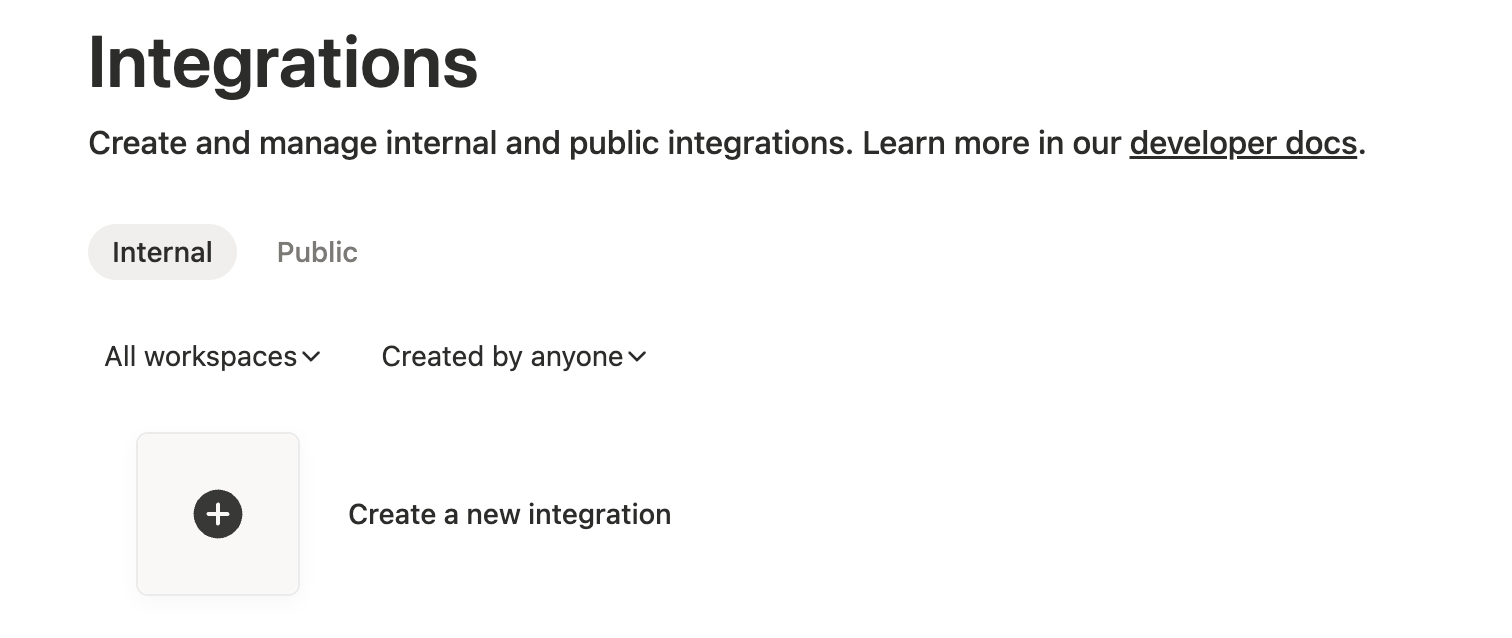
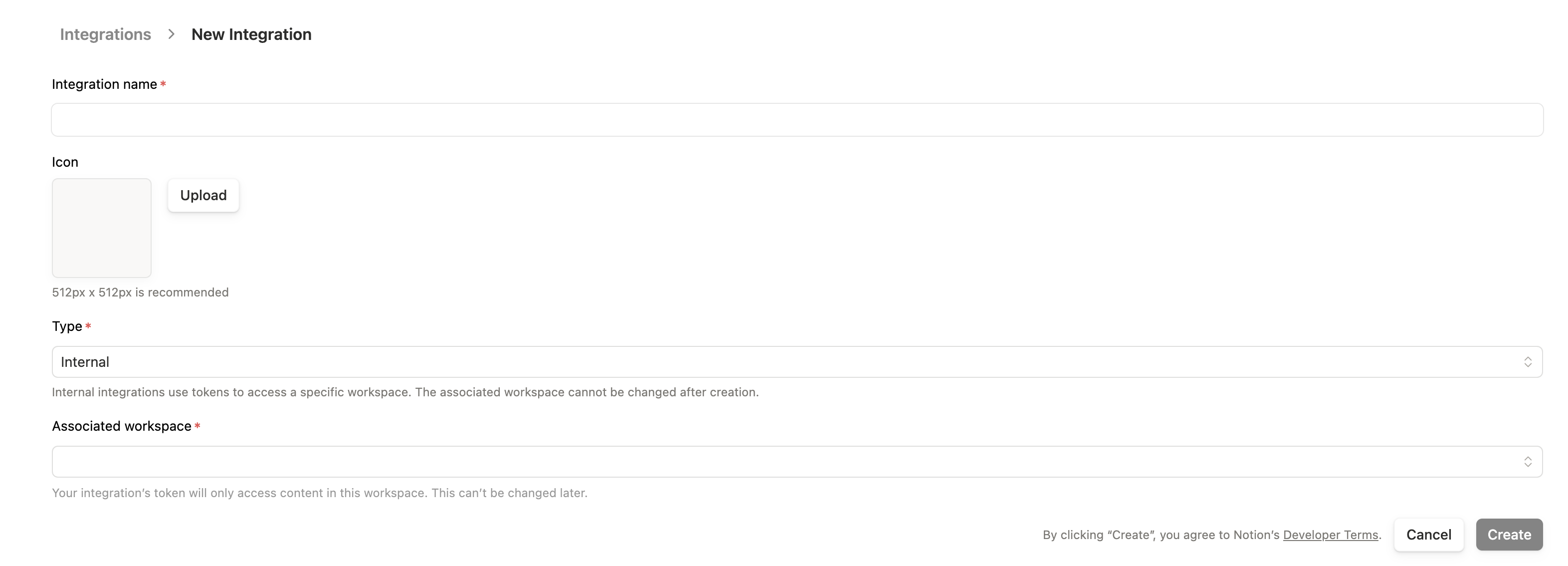
Step 2: Configure Integration
- Enter a name (e.g., “typub”)
- Select the workspace to associate with
- Keep Internal integration selected
- Click Submit
Step 3: Copy Secret Token
- On the integration page, find Internal Integration Secret
- Click Show then Copy
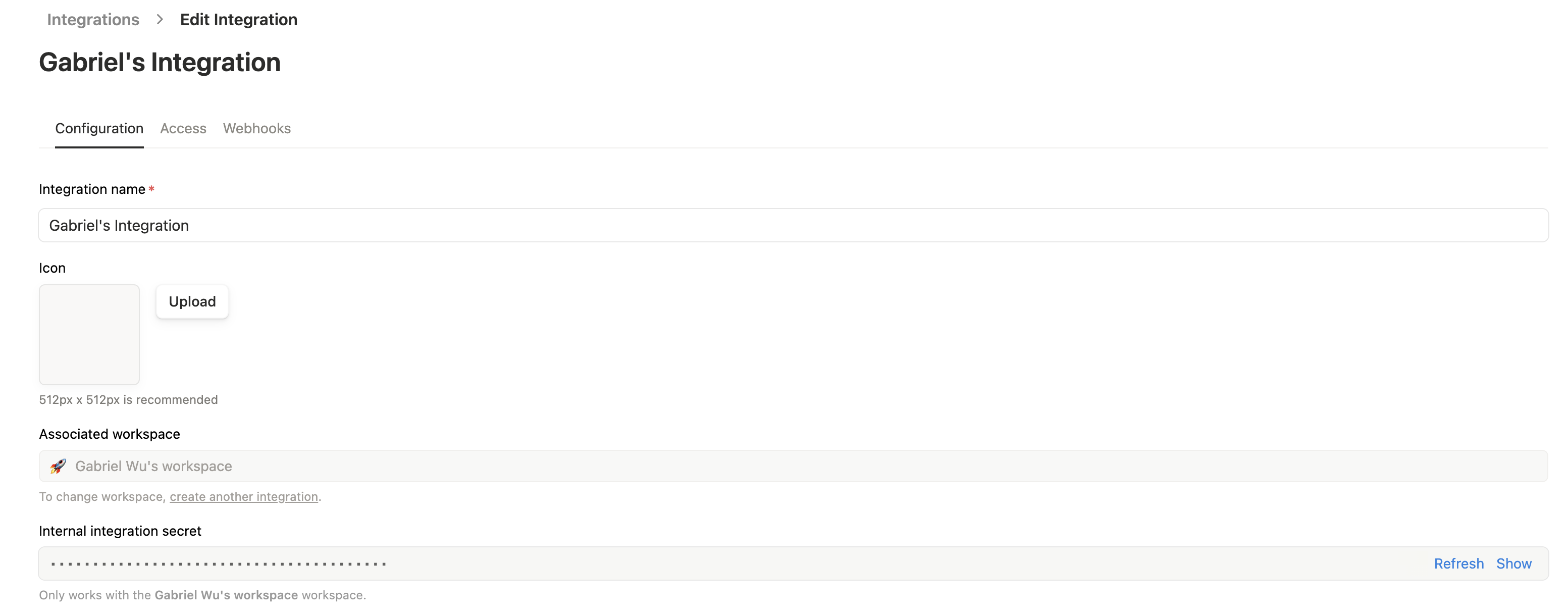
Important: This token has access to pages you explicitly share with it. Keep it secure.
Step 4: Get Data Source ID
- Open your target database in Notion
- Click … (View settings) → Manage data sources

- Click … next to the data source → Copy data source ID
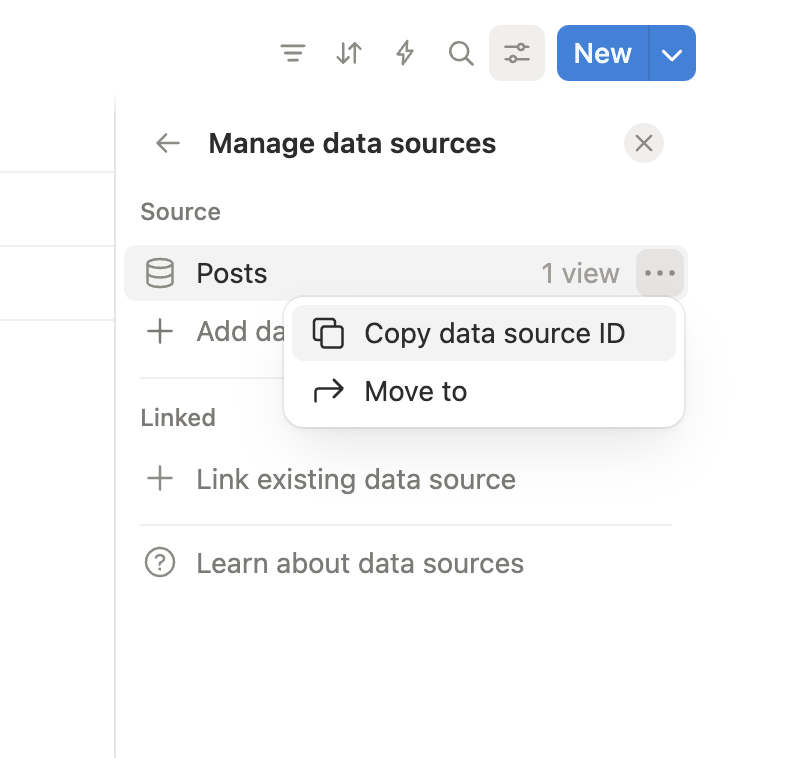
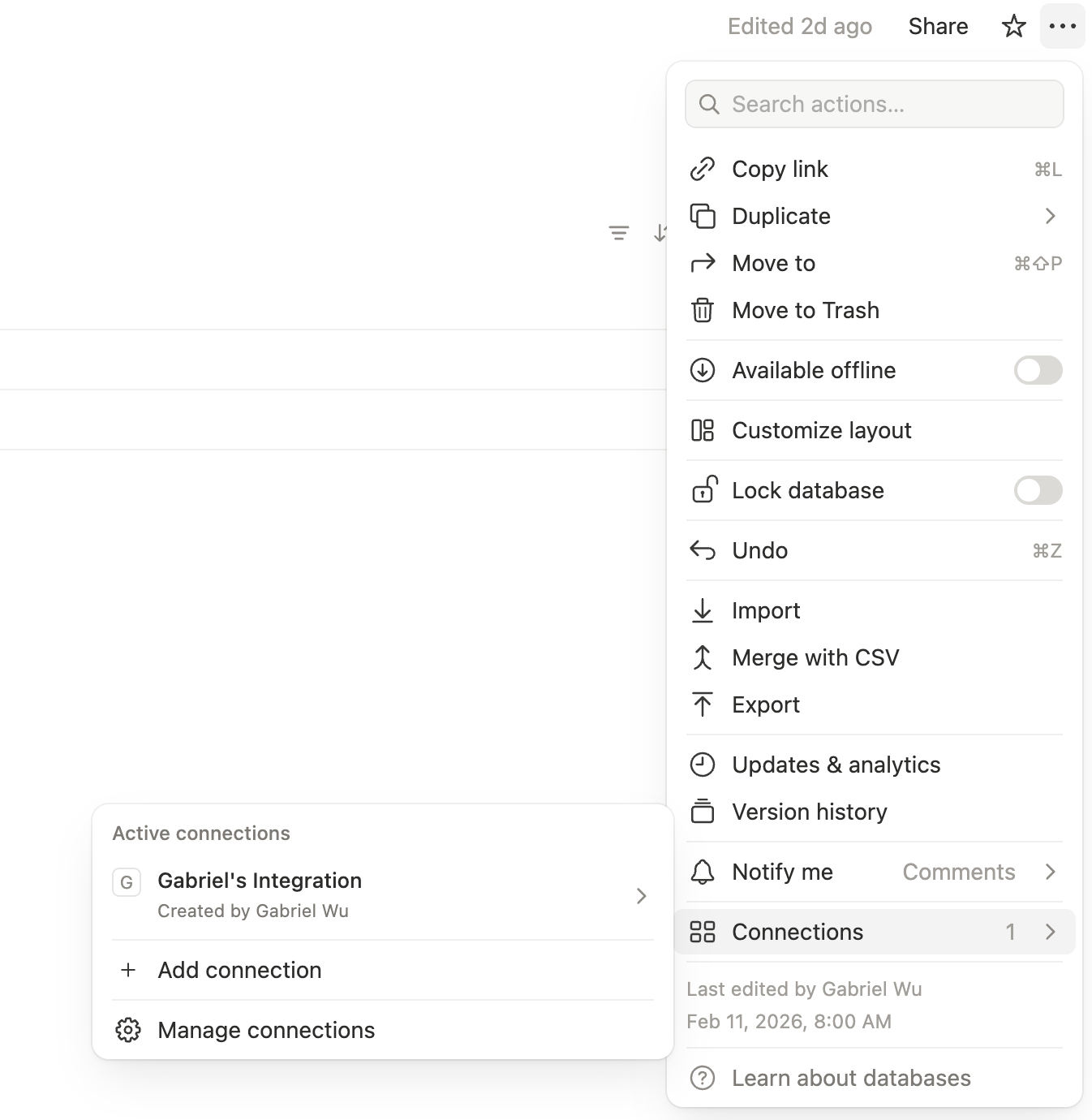
Step 5: Connect Integration to Database
- Open the database page
- Click … (more) → Connections
- Click + Add connection and select your integration
Configuration
[platforms.notion]
data_source_id = "your-database-id"  # Database ID from step 4
tags_property = "Tags"                # Name of multi-select property for tags
asset_strategy = "upload"             # or "external"
Environment Variables:
Set NOTION_API_KEY with your integration secret:
export NOTION_API_KEY="secret_abc123..."
Usage
# Preview content
typub dev posts/my-post -p notion

# Publish to Notion
typub publish posts/my-post -p notion
Database Setup
Your Notion database should have these properties:
| Property | Type | Required | Notes |
|---|---|---|---|
| Title | Title | Yes | Page title (default Name column) |
| Tags | Multi-select | No | For tag sync |
Additional properties can be added but won’t be synced by typub.
Image Captions and Alt Text
Notion image blocks use caption for visible image text.
- If the source contains
figcaption, typub writes it to Notionimage.caption(highest priority) - If there is no
figcaption, typub falls back to imagealtand writes it toimage.caption - typub does not send
image.altin API payloads
This behavior matches the current Notion API validation for image blocks.
Troubleshooting
“Unauthorized” error
- Verify your
NOTION_API_KEYis correct - Ensure the integration is connected to the target database (Step 5)
- Check that the database ID is correct (no
?v=suffix)
Tags not syncing
- Verify
tags_propertymatches the exact property name in Notion - The property must be of type “Multi-select”
- Tags are created automatically if they don’t exist
Images not appearing
- Notion requires images to be uploaded or have public URLs
- Use
asset_strategy = "upload"(default) orasset_strategy = "external" - Embedded base64 images are not supported
validation_error mentions image.alt should be not present
- This means the request body included an unsupported
image.altfield - typub now maps visible caption text to
image.captiononly